> For clean Markdown of any page, append .md to the page URL.
> For a complete documentation index, see https://akamai.ferndocs.com/edge-workers/ds2-javascript-logging/llms.txt.
> For AI client integration (Claude Code, Cursor, etc.), connect to the MCP server at https://akamai.ferndocs.com/_mcp/server.
# Use DataStream 2 to deliver JavaScript logs
In this tutorial you'll learn how to use [DataStream 2](https://techdocs.akamai.com/datastream2/v3/docs/welcome-datastream2) to deliver JavaScript logs to an external endpoint. [JavaScript logging](enable-javascript-logging.md) captures log messages generated by your EdgeWorkers functions during the current request.
Before configuring your logs, review the [limits for JavaScript logs delivered via DataStream 2](limitations.md#limits-for-javascript-logs-delivered-via-datastream-2).
# Before you start
You need EdgeWorkers and DataStream 2 enabled in your contract.
If you are a new EdgeWorkers customer, DataStream 2 is automatically included in your contract.
If you are an existing EdgeWorkers customer, you might need to add DataStream to your contract.
1. To make sure that both products are present, go to Akamai Control Center.
2. From the services menu find **Account Admin** > **Contracts**.
3. In the list of products search for **EdgeWorkers** and then search for **DataStream**.
Contact your Akamai account representative if you need help or more information.
> 📘 Data in transit is not localized. For more information, please refer to the [Akamai EdgeWorkers and EdgeKV Supplemental Product Policy](https://www.akamai.com/site/en/documents/akamai/2022/edgeworkers-and-edgekv-supplemental-product-policy.pdf).
You need the **Data Stream 2 EdgeWorker Write Access Only** permission to make updates to an EdgeWorkers function that adds a reference to a DataStream 2 stream.
# 1. Set up a log destination
For this example we'll use an S3-Compatible storage destination for the logs.
Follow the steps in [Stream logs to an S3-compatible destination](https://techdocs.akamai.com/datastream2/v3/docs/stream-s3-compatible).
> 📘 There are several different storage options available. To learn more about the other supported log streaming destinations, go to the [DataStream 2 guide](https://techdocs.akamai.com/datastream2/v3/docs/stream-logs).
# 2. Create a DataStream 2 stream
To deliver JavaScripts logs via DataStream 2, you need to create and configure a stream and specify where you would like to deliver the logs.
1. In Akamai Control Center, go to ☰ > **COMMON SERVICES** > **DataStream**.
2. Select **EdgeWorkers** from the **Create stream** button on the top right hand side of the page.
### Configure the stream
1. Enter a **Display Name** for the stream.
2. Select the **Group** and **Contract ID** you want to use to create the stream and click **Next**.
### Select the log format
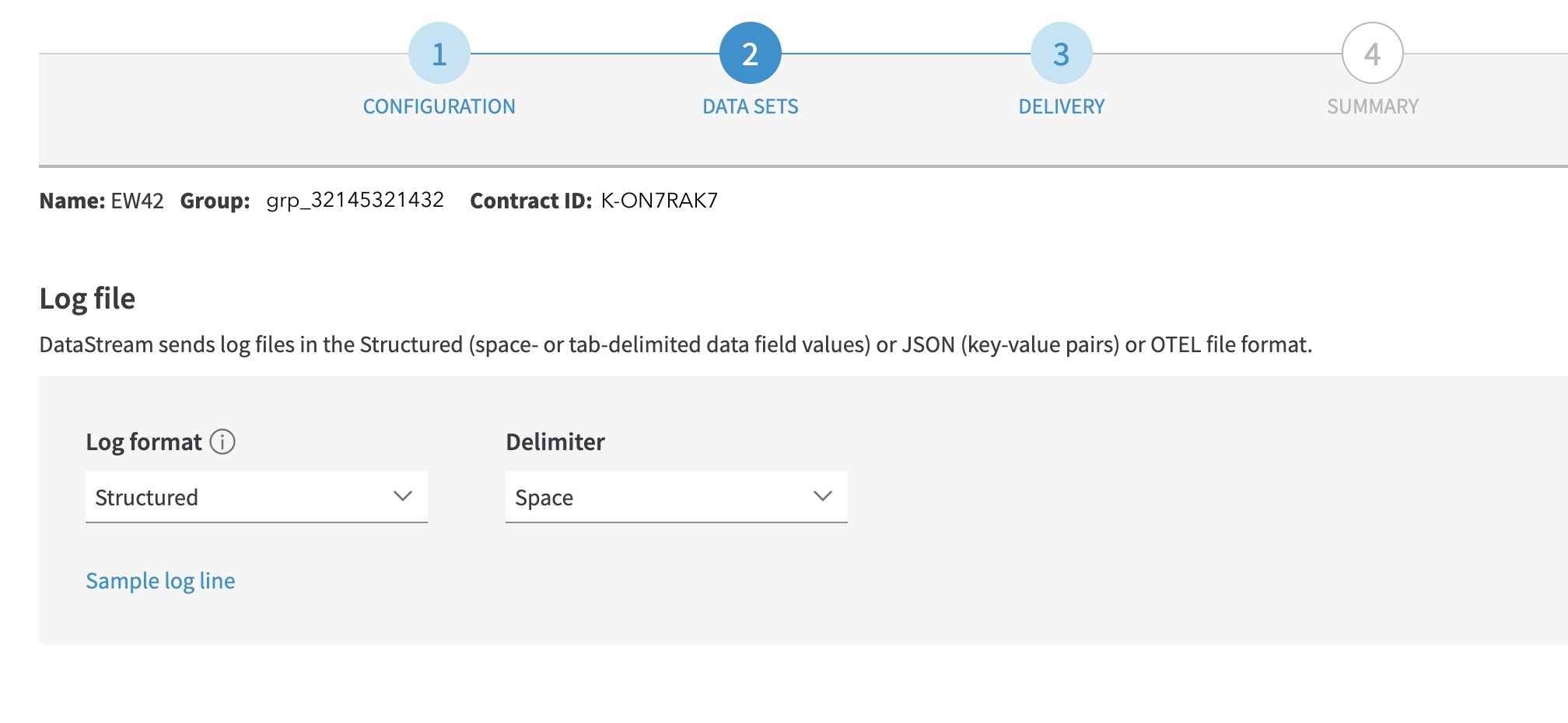
1. Select the format of the log files.
Structured logs let you select whether you want to use a **space** or a **tab** delimiter to separate text strings in the logs.
JSON logs stream logs as key-value pairs.
 > 📘 For more information about the log format, go to [JavaScript Logging details](/edge-workers/javascript-logging-details).
2. Click the** Next **button.
### Configure the destination for the JavaScript logs
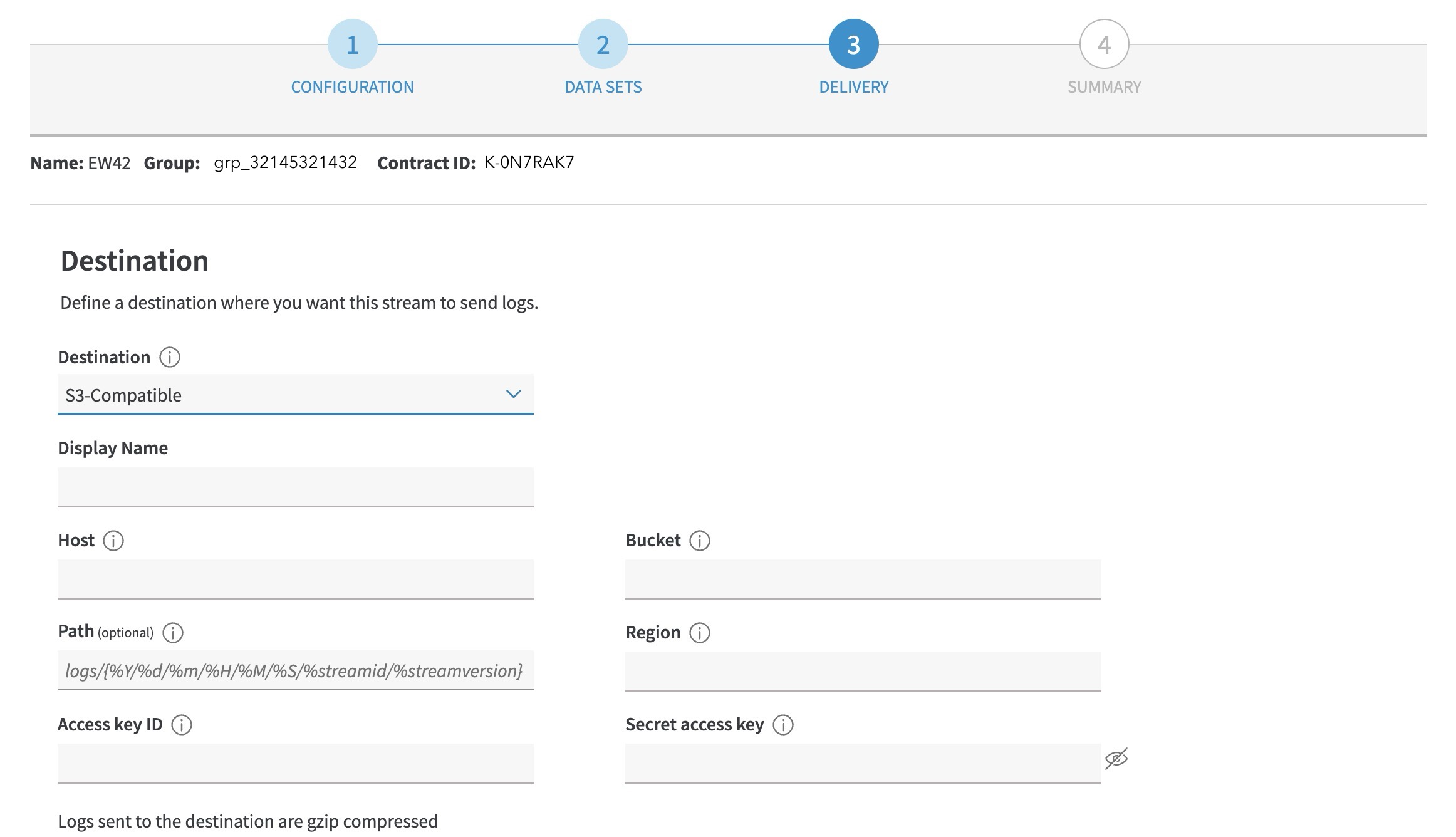
Follow the steps in [Stream logs to an S3-compatible destination](https://techdocs.akamai.com/datastream2/v3/docs/stream-s3-compatible).
> 📘 For more information about the log format, go to [JavaScript Logging details](/edge-workers/javascript-logging-details).
2. Click the** Next **button.
### Configure the destination for the JavaScript logs
Follow the steps in [Stream logs to an S3-compatible destination](https://techdocs.akamai.com/datastream2/v3/docs/stream-s3-compatible).
 ### Review the log summary
1. Review the stream information, then click the **Save stream** button.
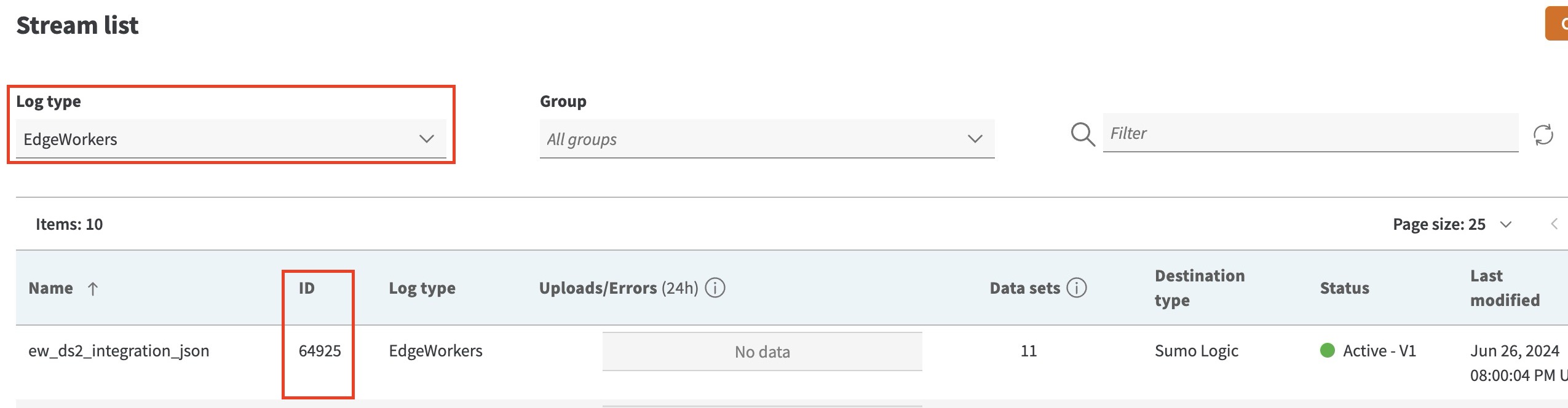
2. In the pop up window that appears, click the **Go to streams** button and select **EdgeWorkers** from the Log type dropdown.
3. Select your stream and note the stream id.
You can also find the `streamid` information later by going to **DataStream** in **Control Center.** Select **EdgeWorkers** under **Delivery type**. You'll see a **Stream list** that you can search. When you find your stream make sure you note the `ID`.
### Review the log summary
1. Review the stream information, then click the **Save stream** button.
2. In the pop up window that appears, click the **Go to streams** button and select **EdgeWorkers** from the Log type dropdown.
3. Select your stream and note the stream id.
You can also find the `streamid` information later by going to **DataStream** in **Control Center.** Select **EdgeWorkers** under **Delivery type**. You'll see a **Stream list** that you can search. When you find your stream make sure you note the `ID`.
 # 3. Create an EdgeWorkers code bundle
For more information see, [Create a code bundle](create-a-code-bundle.md).
1. Import the [log](log.md) module into the `main.js` file. The log built-in module logs messages generated during the current request.
```javascript
// Import logging module
import { logger } from 'log';
export function onClientRequest (request) {
logger.trace("onClientRequest test trace level");
logger.debug("onClientRequest test debug level");
logger.info("onClientRequest test info level");
logger.warn("onClientRequest test warn level");
logger.error("onClientRequest test error level");
request.respondWith(
200, {},
'
# 3. Create an EdgeWorkers code bundle
For more information see, [Create a code bundle](create-a-code-bundle.md).
1. Import the [log](log.md) module into the `main.js` file. The log built-in module logs messages generated during the current request.
```javascript
// Import logging module
import { logger } from 'log';
export function onClientRequest (request) {
logger.trace("onClientRequest test trace level");
logger.debug("onClientRequest test debug level");
logger.info("onClientRequest test info level");
logger.warn("onClientRequest test warn level");
logger.error("onClientRequest test error level");
request.respondWith(
200, {},
'Hello World From Akamai EdgeWorkers
');
}
export function onClientResponse (request, response) {
logger.trace("onClientResponse test trace level");
logger.debug("onClientRequest test debug level");
logger.info("onClientResponse test info level");
logger.warn("onClientResponse test warn level");
logger.error("onClientResponse test error level");
response.setHeader('X-Hello-World', 'From Akamai EdgeWorkers');
}
```
2. Add the `logging` parameter to the `bundle.json` file. You can set the EdgeWorkers log level in the code bundle. By default, EdgeWorkers logs are set to `ERROR`.
> 👍 Make sure you change the `ds2id` to the stream ID you created in [step 2](javascript-logging.md#2-create-a-datastream-2-stream) of this tutorial. A`ds2id` value is required when you add the `logging` parameter to your code bundle.
```json
{
"edgeworker-version": "0.3",
"description" : "Hello World Observability Example",
"config": {
"logging": {
"level":"warn",
"schema": "v1",
"ds2id": 12345
}
}
}
```
> 👍 You can also use [EdgeWorkers CLI](https://github.com/akamai/cli-edgeworkers) to change the log level.
# 4. Create an EdgeWorker ID
1. Go to the EdgeWorkers Management application and [create an EdgeWorker ID](create-an-edgeworker-id.md).
Note the EdgeWorker ID number.
2. [Create a version](manage-edgeworkers.md#create-an-edgeworker-version) and upload the code bundle you created in the previous step.
3. Next, Activate the version.
> 📘 Make sure your `ds2id` is valid and active before you activate the code bundle. An error will appear if you try to activate a bundle with an inactive or invalid `ds2id`. For more information see, [Error codes - EdgeWorkers Management Application](error-codes.md).
> 📘 For an EdgeWorker to use a Data Stream 2 object, it has to be in the same group or in a sub-group related to the stream object. For more information about the EdgeWorkers Access Model go to, the [Identity and Access Management](https://techdocs.akamai.com/iam/docs/about-access-control-model) guide.
# 5. Visit the log destination
To see the JavaScript logs, go to the log destination that you configured in [step1](javascript-logging.md#1-set-up-a-log-destination). The log lines are typically available after two minutes.
In this example you can find the JavaScript logs by opening the S3-Compatible bucket.
> 👍 For more information about the logs go to [JavaScript Logging details](/edge-workers/javascript-logging-details#data-stream-2-javascript-logging-details).