

Debug
Learn about debugging, logging, error codes, and how to resolve common errors related to EdgeWorkers created using flexible composition.
With dynamic reactivation, teams that develop EdgeWorkers are responsible for ensuring that parent EdgeWorkers continue to perform when they activate new versions. Review these resources and tips that can also help you troubleshoot and test your EdgeWorkers.
- Test new versions of the parent EdgeWorkers as part of a continuous integration pipeline.
- Strictly adhere to a mutually agreed upon API definition that is verified through unit tests.
- Monitor the behavior of parent EdgeWorkers and rollback quickly to the previous revision of the parent if an error occurs.
Enhanced debug headers
Enhanced debug headers include the following details to help you understand which EdgeWorker version handled a request.
- The Revision ID of the EdgeWorkers function. You can use the Revision ID to find the associated bill of materials.
- The EdgeWorker ID in the file paths. The EdgeWorker ID appears in the log output and stack traces, to show exactly where events occurred.
📘 Standard debug headers do not include details about EdgeWorkers created using flexible composition.
This example shows the trace response headers with successful execution of all event handlers:
This example shows the trace response header with an execution error.
JavaScript logging
JavaScript logging captures log messages generated during the current request. The paths included in exceptions indicate which EdgeWorker ID and version triggered the error. Here’s a log output example.
EdgeWorkers JavaScript logging returns logs in the following format <debug-level>:<EdgeWorker-ID>:<version>:<file>:<line>:<message>.
DataStream 2 logs
DataStream 2 log details now include a field for the Revision ID. The format of the log output is.
//[EdgeWorker-Id]/[Version]/[Event Handler]/[Off
Reason]/[Logic Executed]/[RevisionID]/[Status]/#[Metrics]
Here’s an example of the usage information output:
//4380/4.0/1/-/0/4/#1,2\//4380/4.0/4/-/0/4/#0,0\//4380/4.0/5/-/1/1/#0,0
A Revision ID is generated each time a dynamic reactivation occurs. If a dynamic reactivation did not occur a dash (-) appears to represent this field in the log output.
Fallback to the previous Revision
If a team in your organization activates a child EdgeWorker with errors, the parent will also begin to produce errors.
-
To identify the source of the error, review the parent EdgeWorker.
-
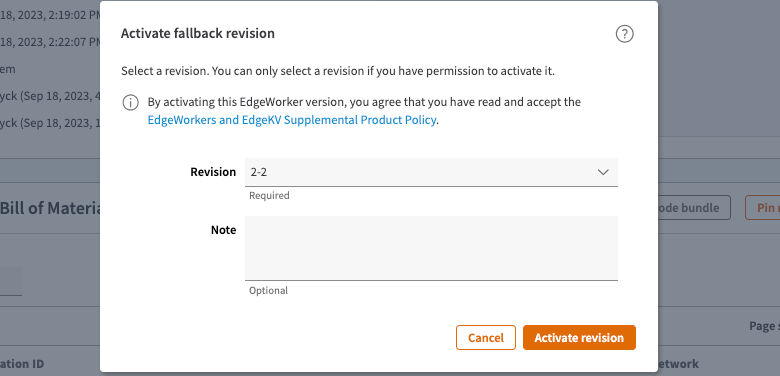
If the failures begin after the most recent Revision ID activation you can fallback to the previous Revision of the parent EdgeWorker.
-
Go to the Revision Activations page for your EdgeWorker ID.
-
Click the Activate revision button and select the Revision that you want to fallback to
-
Click the** Activate revision** button.
After the rollback completes, you can review the errors in the new version of the EdgeWorker, fix the error, and activate it again.
Error codes
These error codes appear in the EdgeWorkers Management application to keep you informed about limitations and issues related to flexible composition.
You can find a full list of error codes in the Error codes - EdgeWorkers Management Application section of this guide.